The “Pink Screen of Death” Explained
You have successfully installed the APK, granted permissions, and launched the application. But instead of the main menu, you are greeted by a blinding, solid pink screen, or perhaps the character models are rendered as magenta blocks while the text remains visible.
This is not a corrupted download. It is not a virus. It is a specific architectural conflict between the Ren’Py engine (which powers Four Elements Trainer) and the hardware acceleration protocols used by modern Android operating systems—specifically Android 12, 13, and 14 on devices with Mali GPUs (common in Samsung Exynos and Xiaomi chipsets).

Most users assume they need to redownload the game. They are wrong. Redownloading will not solve this because the issue lies in how your phone’s GPU composes screen layers. This guide provides the engine-level fix to force your device to render the game correctly.
Quick Fix: The 30-Second Solution
For advanced users familiar with Android settings, here is the immediate resolution path to clear the graphical corruption.
- Open Settings and navigate to About Phone.
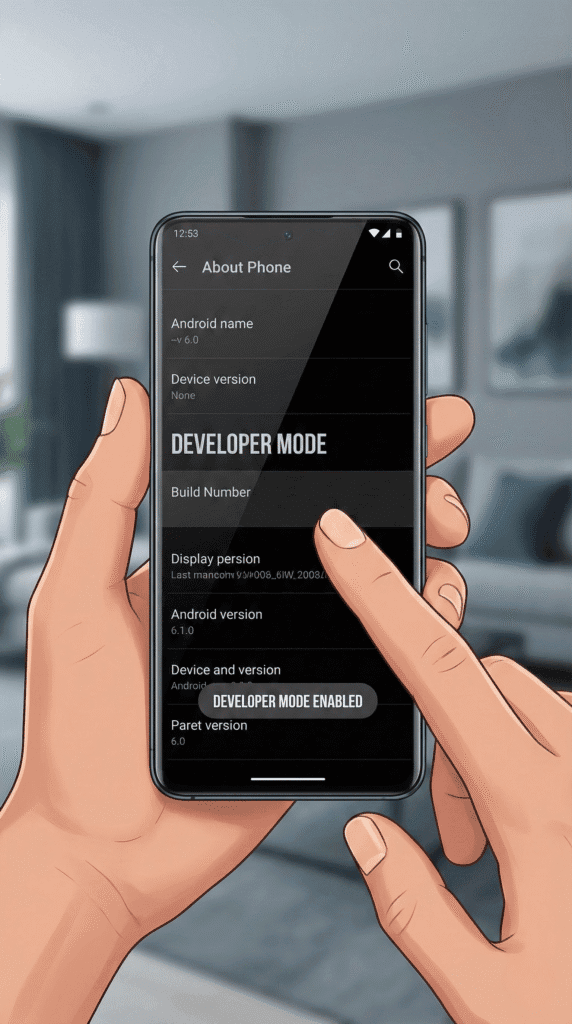
- Tap Build Number seven times rapidly until you see the toast message “You are now a developer.”
- Go back to System (or Additional Settings) > Developer Options.
- Scroll down to the Hardware Accelerated Rendering section.
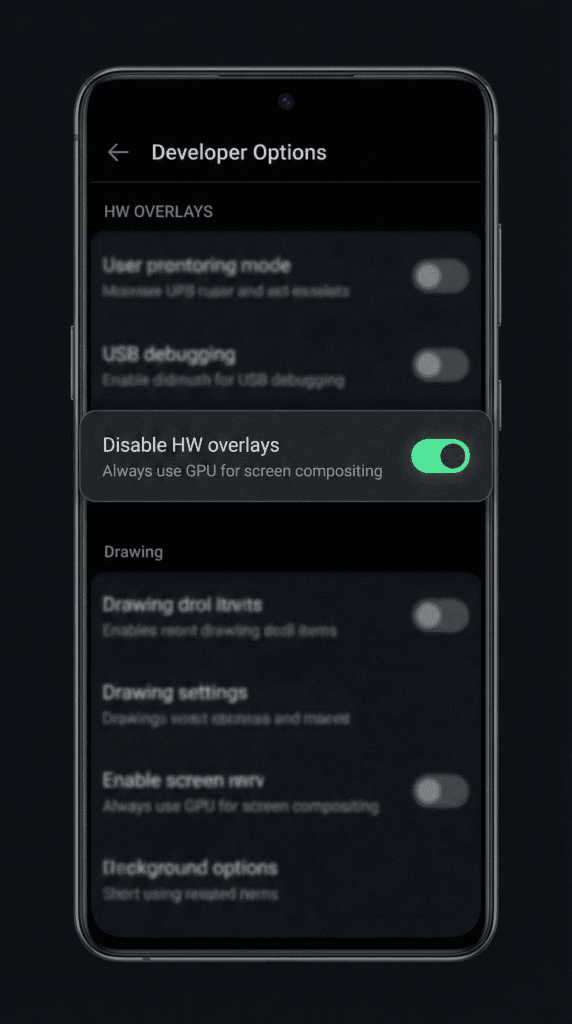
- Find Disable HW overlays and toggle the switch to ON.
- Restart Four Elements Trainer.
The Technical Why: Understanding the Ren’Py Shader Conflict
To understand why this fix works, we must look at the rendering pipeline. Four Elements Trainer is built on Ren’Py, a Python-based visual novel engine. Older versions of Ren’Py utilize a specific OpenGL ES shader to render 2D sprites over background images.
Modern Android devices use “Hardware Overlays” to offload simple video composition tasks to a dedicated display processor, sparing the main GPU. However, the specific shader used by this game fails to communicate with the display processor on newer Android builds (specifically the compositor). The “Pink” color is actually the engine’s default “null texture” output—it’s the computer graphics equivalent of a “Missing File” icon.
Think of it like this: Your phone is trying to paint a picture (the game). The “HW Overlay” is a clear sheet of plastic placed over the canvas. The game is trying to paint on the canvas, but the phone is insisting on looking at the plastic sheet. Because the game engine can’t draw on that specific sheet, you see the default background color: Pink.
By toggling “Disable HW Overlays,” you are forcing the phone to remove that plastic sheet and use the main GPU for everything. This is computationally slightly more expensive, but it ensures the game renders directly to the screen buffer.
Step-by-Step Guide: Disabling HW Overlays
If the quick summary was insufficient, follow this detailed walkthrough. This process is safe and reversible.
Step 1: Unlock Developer Options
Android hides advanced GPU settings to prevent casual users from breaking system animations. You must manually unlock them.
- Navigate to Settings > About Phone.
- Locate the Build Number entry. On Samsung devices, this is inside “Software Information.” On Xiaomi, it is “MIUI Version.”
- Tap this entry 7 times in quick succession. You may be asked to enter your PIN.
Step 2: Locate the Hardware Rendering Section
- Return to the main Settings menu.
- Navigate to System > Developer Options. (On some devices, this is under “Additional Settings” or “System & Updates”).
- Scroll down past “Debugging” and “Networking.” You are looking for a section titled Hardware Accelerated Rendering.
Step 3: The Toggle
- Find the option labeled Disable HW overlays (Description: Always use GPU for screen composition).
- Toggle this switch ON.
- Crucial Step: Force close the Four Elements Trainer app (swipe it away from your Recent Apps list) and relaunch it. The pink textures should be replaced /by the correct game assets immediately.
Still Seeing Pink or Glitches?
If disabling overlays didn’t work, your APK version might be too old for your Android OS.
Download Latest Version
(Get the Android 14 Optimized Build with updated Ren’Py Shaders)
Trust & Reality Check: The Reboot Caveat
What Most Sites Won’t Tell You:
The “Disable HW Overlays” setting is volatile. On many devices (especially Samsung and Pixel), this setting resets to “OFF” every time you restart your phone. If you reboot your device and the pink screen returns, you will need to repeat Step 3.
Daniel’s Exclusive Tip:
If you play frequently, add a “Developer Options” tile to your Quick Settings panel.
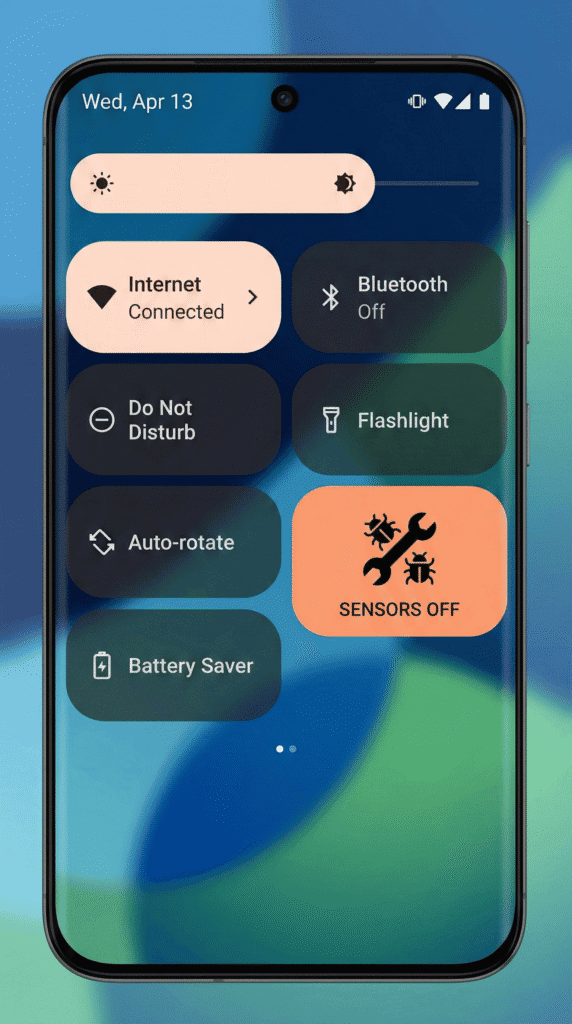
- Inside Developer Options, find “Quick settings developer tiles.”
- Toggle “Sensors Off” or similar debug tools (some custom ROMs allow an Overlay toggle here).
- This allows you to access these settings from your notification shade without digging through menus.
- Fixed the screen but lost your progress?
If you uninstalled the game trying to fix this, you might need to restore your data. Read our guide on Save File Location: How to Transfer Saves on Android 11+. - Game crashing elsewhere?
If the game freezes specifically during the “Shop” or “Cave” sequences, it might not be a GPU issue but a logic bug. Check our walkthroughs for those specific sections, such as Book 3 (Earth) Walkthrough: Toph & Obsidian Locations.
Frequently Asked Questions (FAQ)
Will disabling HW Overlays drain my battery?
Marginally, yes. Because you are forcing the GPU to handle screen composition that a low-power display processor usually handles, power consumption may increase slightly while gaming. It is recommended to toggle it off when you are finished playing.
Why does this only happen on Android?
The PC version uses DirectX or OpenGL directly via the desktop GPU drivers, which do not utilize the mobile-specific “Hardware Composer” architecture. This is exclusively a mobile architecture conflict.
I have a Pixel phone and this didn’t work. What now?
On some Pixel 7/8 devices, the issue is actually the “Game Dashboard.” Try turning off “Game Mode” for this specific app in your system settings, or ensure you are using the latest version of the APK which has updated Ren’Py libraries.