The “Invisible File” Panic
You have put 40 hours into mastering the elements. You want to back up your progress or transfer your save from PC to your new Android device. You open your file manager, navigate to the game folder, and find… nothing. Empty folders.
This is not a bug in Four Elements Trainer. It is a security feature of your phone. Starting with Android 11, Google introduced Scoped Storage, a protocol that deliberately hides the /Android/data/ directory from standard file manager apps to prevent apps from snooping on each other.
For gamers, this is a nightmare. It makes manually installing “100% Save Files” or backing up your own progress seemingly impossible. This guide will show you exactly how to bypass these restrictions using legitimate tools to access the hidden partition where your data lives.
Quick Answer: The Exact Path
If you already have a “Root” capable file manager or are accessing the phone via PC, here is the direct directory you need.
| Platform | Path | Extension |
|---|---|---|
| Android | /Android/data/com.mity.fourelementstrainer/files/saves/ | .save |
| PC (Windows) | [Game Folder]/game/saves/ | .save |
| Mac | ~/Library/RenPy/FourElementsTrainer/ | .save |
Note: The package name com.mity.fourelementstrainer may vary depending on who ported the APK. Look also for com.games.fourelementstrainer.
The Technical Why: What is Scoped Storage?
Why did Google hide your files? In older Android versions, any app with “Storage Permission” could read almost any file on your SD card. To improve privacy, Android 11+ sandboxes every app’s data.
The system’s default “My Files” or “Files by Google” app is restricted from seeing inside the Android/data folders of other apps. However, the files are still physically there. To see them, you need a file manager that requests a specific API permission called MANAGE_EXTERNAL_STORAGE or uses the legacy Storage Access Framework (SAF) correctly.
Think of it like this: Your save file is in a safety deposit box. The standard File Manager is a lobbyist who isn’t allowed in the vault. You need to hire a Bank Manager (a specialized app) who has the keys to open the box.
Step-by-Step Guide: The ZArchiver Method
To transfer saves on Android 12, 13, or 14, we recommend ZArchiver. It is free, ad-free, and handles the permission handshake correctly.
Step 1: Install and Grant Permissions
- Download ZArchiver from the Play Store.
- Open it. You will see a prompt asking for “All Files Access.”
- Tap Allow. This is critical; without it, the
Android/datafolder will appear empty.
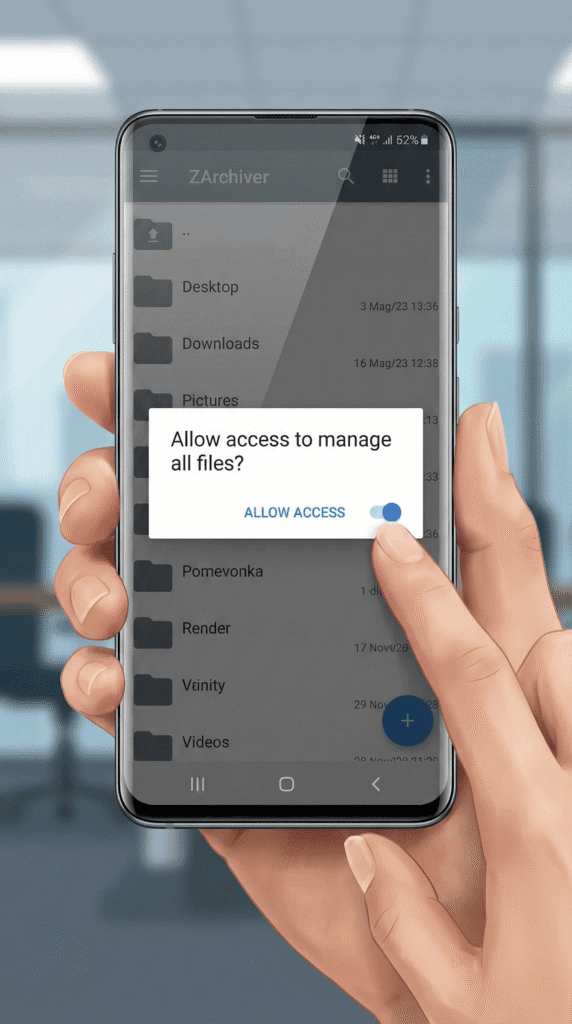
Step 2: Navigate to the Data Folder
- Open the Android folder.
- Open the data folder.
- Troubleshooting: If asked for permission again here, tap “Use this Folder” at the bottom of the screen.
- Scroll down to find the game package. It is usually named
com.mity.fourelementstrainerorcom.games.fourelementstrainer.
Step 3: Injecting the Save File
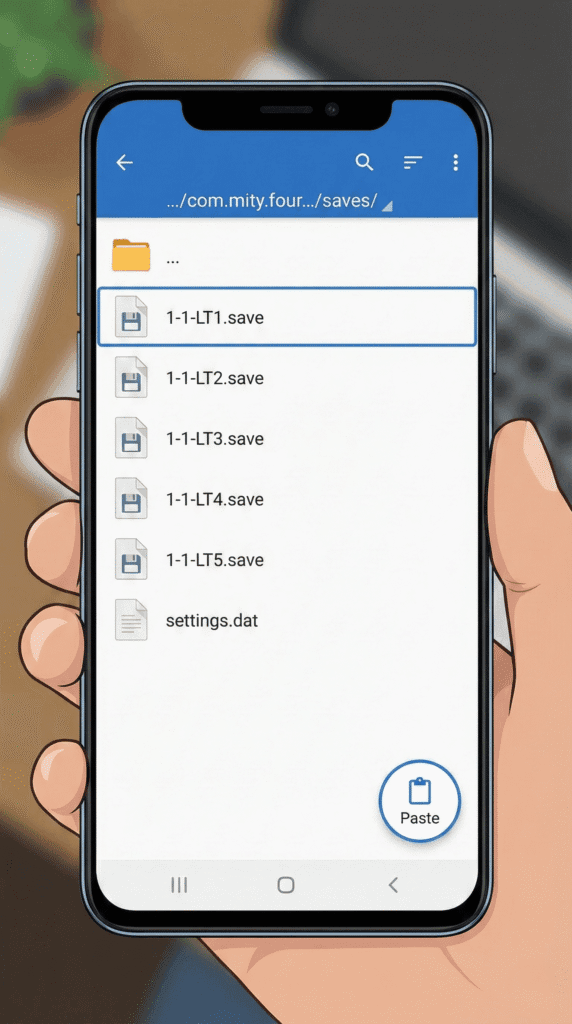
- Open the
files>savesfolder inside the package. - To Backup: Copy all files ending in
.saveto your Downloads folder. - To Install a Downloaded Save: Copy your downloaded
1-1-LT1.savefile from your Downloads folder and Paste it here.
Can’t make it work?
If file management is too technical, download the Modded APK which includes a built-in “Save Manager” in the menu.
Download Latest Version
(Features “Export Save to SD Card” button)
Trust & Reality Check: Version Mismatch
What Most Sites Won’t Tell You:
Just because you placed the file in the right folder doesn’t mean it will load. Four Elements Trainer updates (e.g., v0.95 to v1.0) often change the internal variable names.
If you load an old save file into a newer version of the APK, you might encounter a “Variables Mismatch” error or a crash.
Daniel’s Exclusive Tip:
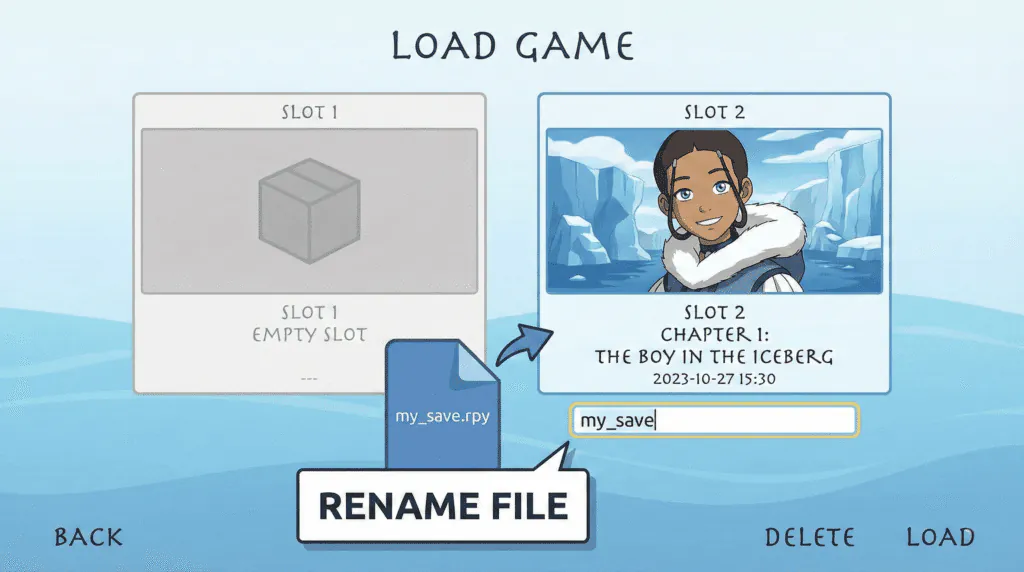
When manually transferring saves, always rename the new file to match the slot of an existing save you made in the game.
- Play the game and save in Slot 1.
- Go to the folder and note the name (e.g.,
1-1-LT1.save). - Rename your downloaded save to
1-1-LT1.save. - Overwrite the file.
This tricks the game engine into recognizing the file immediately.
- Got the save but the screen is pink?
Visual glitches are common after transfers. Fix it with our guide: Fix Pink Screen Glitch in Four Elements Trainer (Android 12/13/14). - Need a 100% Save File?
Don’t have a save to transfer yet? Get our verified complete save file here: Four Elements Trainer Save File Download (100% Gallery Unlocked). - Stuck in the Earth Temple?
Now that your save is loaded, get through the tunnels: Book 3 (Earth) Walkthrough: Toph & Obsidian Locations.
Frequently Asked Questions (FAQ)
Why does the folder say “Access Denied”?
You are likely using the default Samsung or Google file manager. You must use a third-party app like ZArchiver, Total Commander, or Solid Explorer that supports the SAF protocol.
I transferred the save, but the slot is empty.
Did you copy the .screenshot file too? Ren’Py saves consist of a data file (e.g., 1-1-LT1.save) and a thumbnail image. If the image is missing, the slot looks empty, but you can usually still click it to load.
Can I transfer saves from PC to Android?
Yes. The .save files are cross-platform compatible. Just copy them from your PC’s game/saves folder to the Android path listed above.
Does uninstalling the APK delete my saves?
On Android 11+, YES. Because the save files are stored in the app’s private data folder, uninstalling the app wipes that folder. Always backup your saves folder before updating or reinstalling.